
This guide has following steps
Step 1:
- jdsfasdlflsdjf
Sub step of step 1
Step 2:
- In the “Queries” left side bar, under “Other Queries” select the folder connection query you want to change source from OneDrive to SharePoint.
- If prompted provide credentials
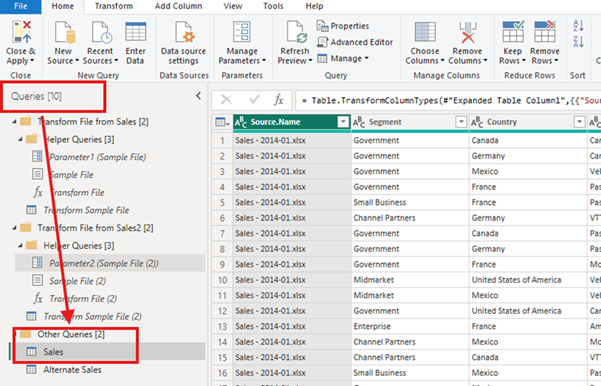
Step 3: Change data source
- On the right side of the Power Query interface, under “Query Settings” in “Applied Steps” select the “Source” step, it would be probably the first step.
- Then go to the formula bar
- Change folder source – from something starting with “Folder.Files”`= Folder.Files(“C:\Users\[username]\OneDrive – [OrgName]\[folder path]”)` to a SharePoint folder `= SharePoint.Files(“https://[OrgName].sharepoint.com/sites/[YourSiteName]/“, [ApiVersion = 15])`
- Again you may be prompted to provide credentials
- Filter “Folder Path” column to the desired folder. It will create a new step after the “Source” step.
Step 4: Change sample file source
- Locate the file: Under “Queries” find the folder “Transform File from [YourFolderName]”. In this folder there is a folder named “Helper Queries”. Select “Sample File”.
- Under “Query Settings” in “Applied Steps” select the “Source” step, it would be probably the first step.
- Then go to the formula bar and change folder source – from something starting with “Folder.Files”`= Folder.Files(“C:\Users\[username]\OneDrive – [OrgName]\[folder path]”)` to a SharePoint folder `= SharePoint.Files(“https://[OrgName].sharepoint.com/sites/[YourSiteName]/”, [ApiVersion = 15])`
- Again you may be prompted to provide credentials
- Filter “Folder Path” column to the same folder as the main folder. It will create a new step after the “Source” step.
Moving Power BI data from OneDrive to SharePoint

Demystifying Technical Analysis: A Beginner’s Guide to Chart Patterns and Indicators
Demystifying Technical Analysis: A Beginner’s Guide to Chart Patterns and Indicators” offers an accessible entry…

The Art of Risk Management: Safeguarding Your Investments in a Volatile Market
In the ever-changing landscape of the financial markets, mastering the art of risk management is…

Mastering Market Volatility: Strategies for Thriving in Turbulent Times
In today’s dynamic financial landscape, market volatility presents both challenges and opportunities for traders. “Mastering…
Hello world!
Welcome to WordPress. This is your first post. Edit or delete it, then start writing!